How to share ownership of a Google Business Profile
How can you add Manager to Google My Business in 2024? (8 steps)
Here is how you can share access to your Google Business Profile with a coworker, freelancer, or age
1. Sign in to Your Google My Business Account
First, make sure you’re using the Google account attached to the Google account that is the primary owner of the Google Business Profile.
Then, search your business name on Google.com. Yep, just “google search” your company name. Make sure to search for the exact name used in your Google Business Profile. I’ve run across companies that didn’t show up when I left off a word or two.
If you’re logged into the primary ownership account, then your business dashboard will now be visible.
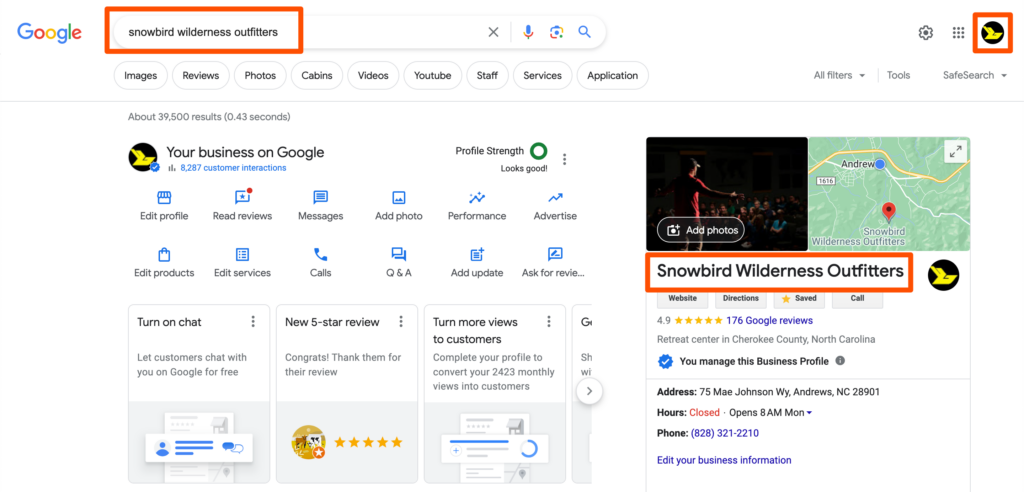
2. Click on the 3-Dot Menu Icon
This menu icon is located roughly at the top right of the search results section (middle). After clicking it, you’ll see the drop-down menu you need to move forward.
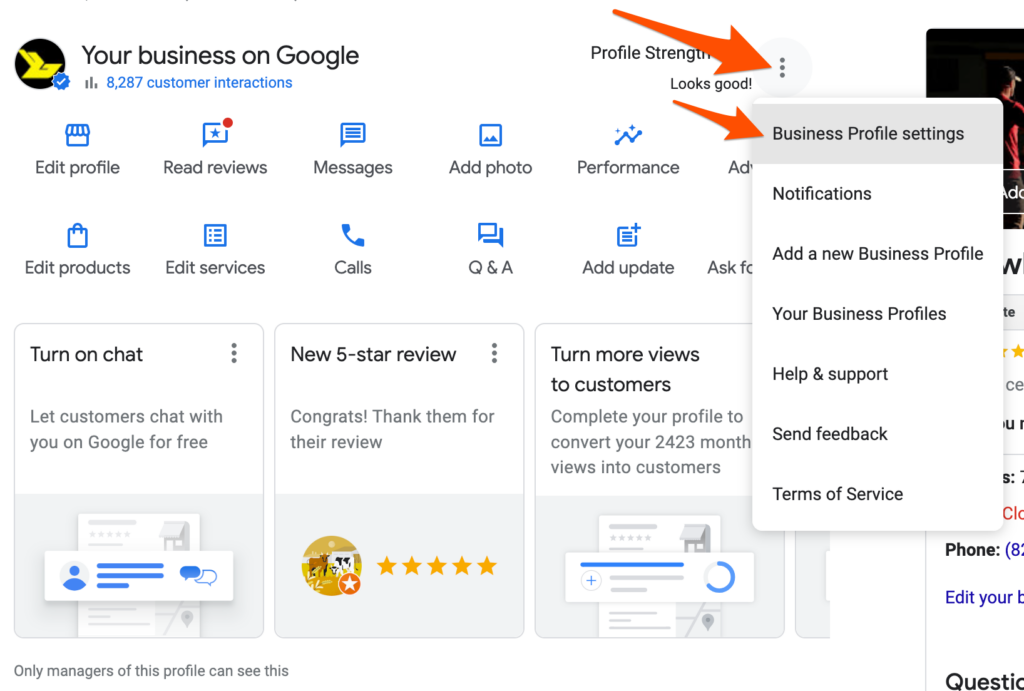
3. Select the “Business Profile Settings” Tab
Choose the “business profile settings” option in the drop-down menu and keep going.
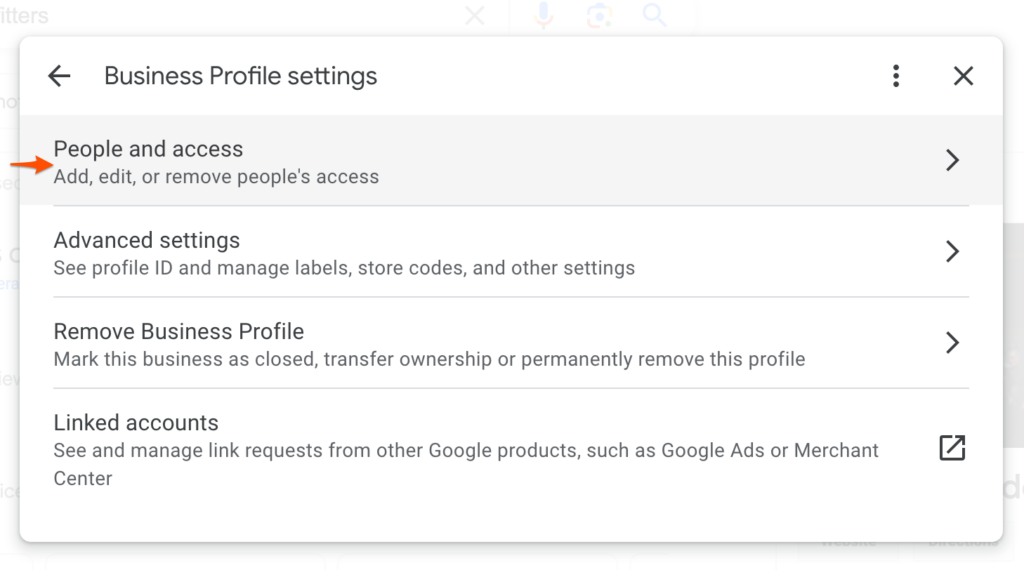
4. Click on the “People and Access” Button
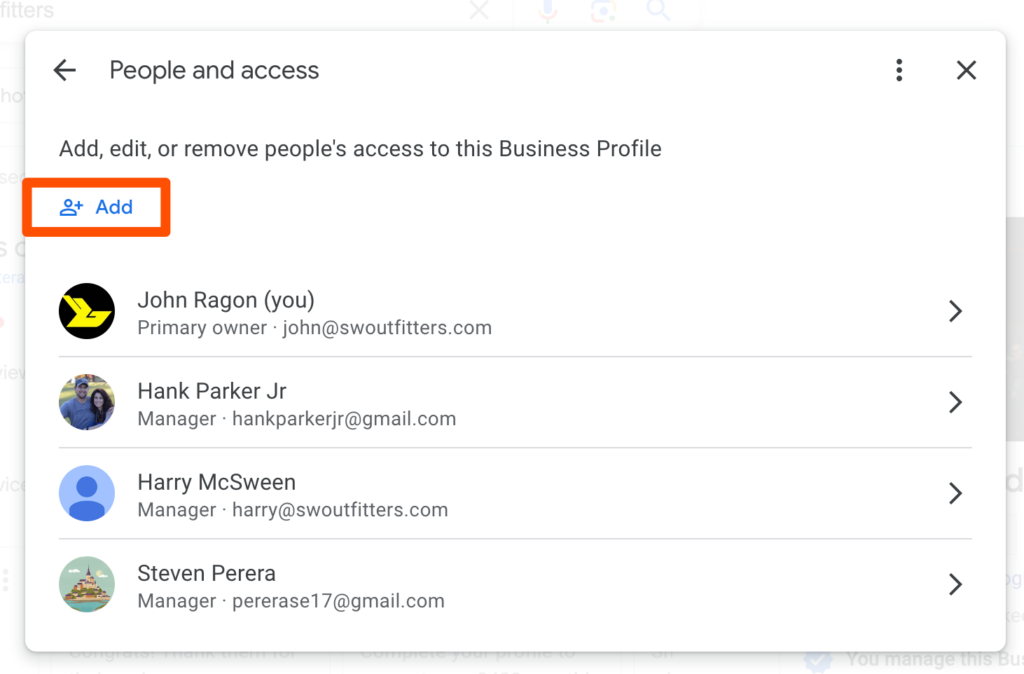
Here, you’ll see a list of active owners and managers (by email account) of your Google Business listing. You can “add, edit, or remove people’s access” here.
5. Click on the “Add” Button at Top
There will be a silhouette icon with a “+” simple to “Add” an approved manager to your GMB profile. Click this add option to open the next step.
6. Enter the New Manager’s Email Address
Ok, now we’re getting somewhere. Paste your new manager’s (freelancer, agency, or in-house marketer) email into the “Email address” box.
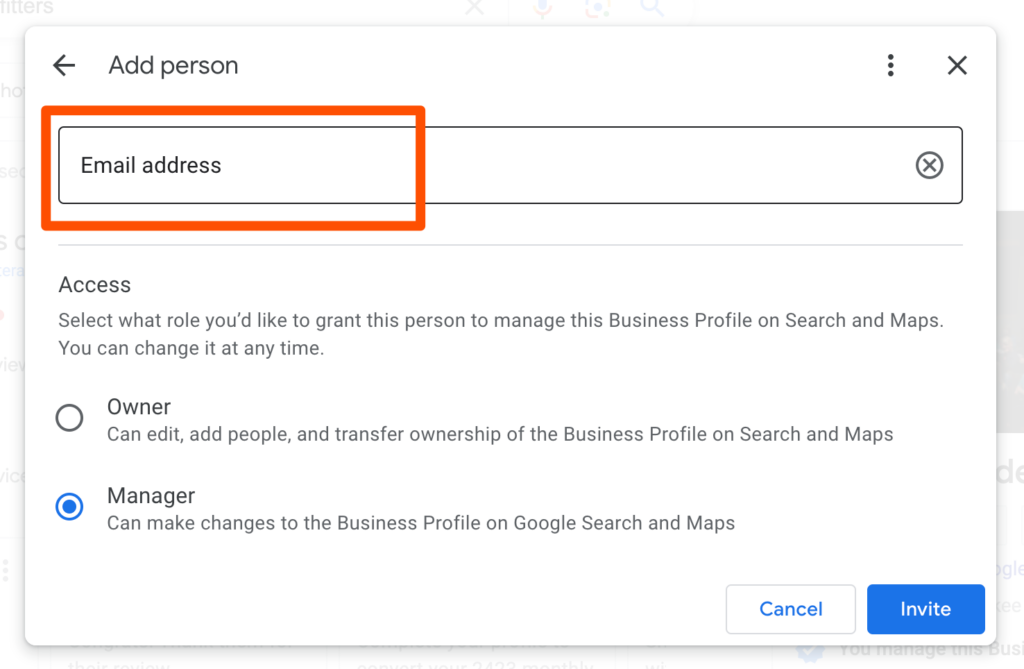
7. Select the “Manager” Role
Now, you’ve got the option to choose what level of permission you want this new profile manager to have access to. Usually, the “manager” option is plenty unless you are delegating full control of your online presence to someone else.
Here are the 2 access levels available for managers in GMB:
Owner — If you choose to make them a primary owner, they “can edit, add people, and transfer ownership of the Business Profile on Search and Google Maps.”
Manager — If you provide the manager level of access, they will only be able to “make changes to the Business Profile on Google Search and Maps.” (And not add or remove other Google Business managers.)
Your new manager will be able to edit your Business Profile on Search and Maps. But, don’t stress out too much over the correct access level—you can change their permission level at any time. Both levels of access enable the team member to edit the core areas of your l:
- Business address
- Additional business locations
- Responses to reviews
- Business categories
- Business posts
- Answers to questions
- Your profile photo and various location photos
8. Click On The “Invite” Button & Send Invitation to the New Manager
Google will send a notification email to the new manager as soon as you hit that “Invite” button. But, check with them personally to make sure it has arrived. Once they complete the email verification process, they will be ready to start optimizing your Google Business Profile.
Related Articles
Surface Pro - Setting Up Zoho Mail
1. Overview This guide explains the recommended way to access your email on a Surface Pro. There are two options: Recommended - Zoho Mail (web app - simplest and most reliable) Optional - Microsoft Outlook (IMAP setup) 2. Recommended Setup - Zoho ...